

How to Use Canva to Create Professional Client Documents (Even If You’re Not a Designer)
You’ve taken the brave leap into running your own business—and suddenly you need to whip up documents that actually look the part. Let’s be honest, it feels daunting when you don’t have a design background (and would rather spend your time doing what you love). But here’s the good news: Canva makes it almost too easy.
You get templates for proposals, reports, or even welcome packs. Drag, drop, done. No fancy tools, no faffing around with expensive software, and best of all—your documents finally look polished and professional. I’ll walk you through what works, what doesn’t, and how you can start creating head-turning documents for your clients without tearing your hair out or hiring anyone else.
If you’ve ever thought, “I want my business documents to look more professional,” you’re in exactly the right place. Canva closes the gap between what you want your business to look like and what’s actually possible—on your own terms, at your kitchen table, coffee in hand.
Getting Started with Canva for Business Documents
So, you’re ready to roll up your sleeves and make your documents look the part—without a design degree. Canva is your friend for this! Before you can create anything, though, you’ll want to take a few easy steps to get your set-up sorted. It’s worth a little effort now because once you’ve built your foundation, you can whip up polished documents in minutes, not hours.
Whether you’re just signing up or you’ve poked around before, I’ll break down the basics—from the moment you open Canva, to finding a template that does half the work for you.
Creating Your Brand Kit in Canva
First things first—signing up is straightforward. Hop onto Canva.com, select “Sign up,” and use your email or Google account. The free plan is OK, but if you want to really tie your brand together, the Pro plan (£13/month at the time I wrote this) gives you all the bells and whistles.
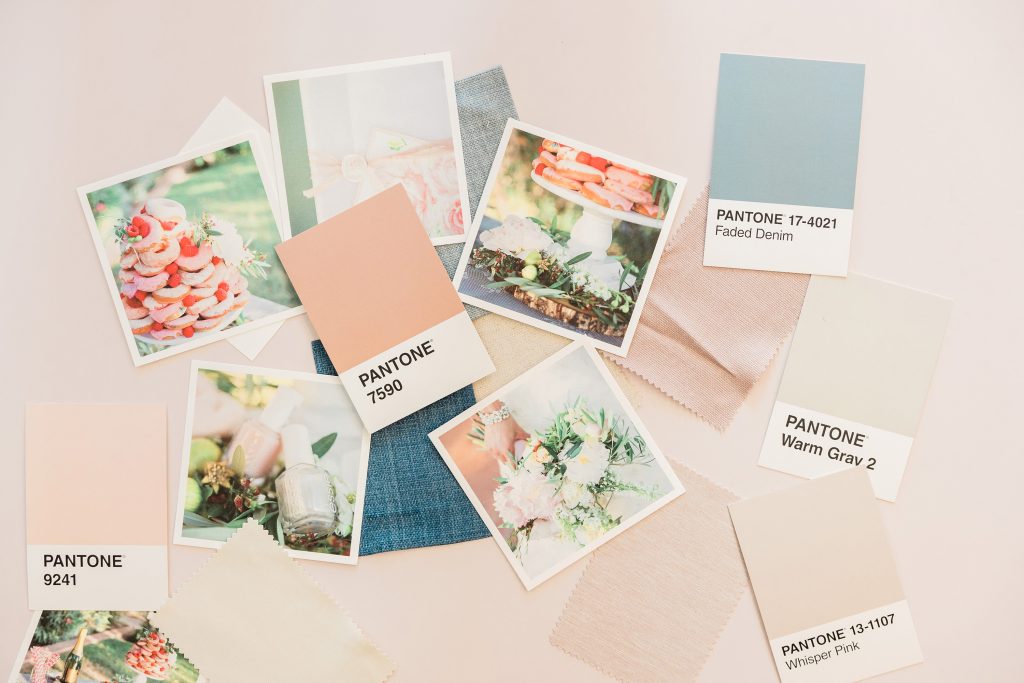
Here’s the fun part: your brand kit. Think of it as the wardrobe for your business. When you set it up, you’ll always have YOUR colours, fonts, and logo on hand—no more second-guessing or colour hunting.
To set up your brand kit:
- From Canva’s home page, look for “Brand” or “Brand Kit” in the sidebar.
- Click “Add Brand Assets”. This is where you’ll upload your logo (just drag and drop—easy).
- Select your brand colours. If you know the hex codes (those handy six-digit colour codes), you can enter them. If not, click to pick colours and save them. Keep them to 2-3 for a clean, professional look.
- Next, choose your brand fonts. Canva has loads of options, but simpler is better—pick one style for headings, and one for body text.
- Save! That’s your brand kit ready to use on any template, any time.
Why bother with all this? Because brand consistency builds trust. When a client sees your proposal, report, or even just a meeting agenda that’s neat and matching—they notice. Everything feels more put-together, and you get fewer “wait, who is this from again?” moments.
Choosing Templates for Professional Client Documents
Templates are your shortcut to documents that look like you paid a designer—without actually doing that. Canva’s got thousands of templates. You can sort by document type: proposals, reports, contracts, invoices, presentations, you name it.
Here’s how to find the right template:
- From your Canva dashboard, type what you need (like “proposal” or “client report”) into the search bar.
- Scroll through the templates, clicking any that catch your eye. Hover to see a quick preview—if it’s love at first sight, click “Customise”.
- Want to save even more time? Filter by “Free” or “Pro” (depending on your plan) and by size (A4 is a safe bet).
These templates are more than pretty faces. They’re practical. You get sections and layouts that nudge you to include all the right info—perfect if you’re new to writing proposals or not sure what to include. And because you’re starting with a well-designed base, you’re less likely to get overwhelmed by a blank page (no one likes a blank page!).
Best of all, you can swap in your brand kit with just a few clicks—your colours, logo, and fonts will transform any template into your own in seconds. That means less fiddling, more doing.
Ready to see how streamlining your workflow looks in real life? Once you’ve nailed these first steps, you’ll be able to breeze through proposals and guides—and, honestly, probably enjoy it a lot more.
Customising Documents for a Professional Look
Personalising your documents in Canva isn’t just about swapping out colours or sticking your logo in the corner. It’s about making your documents tell your story, feel like your business, and look trustworthy—so when your client opens that PDF or printed report, they pause for a second and think, “Wow, she means business.” The good news? You don’t need to be a design whizz. With a few basic principles and a dash of confidence, you can make every page feel sharp and intentional.
Design Principles for Non-Designers

Design doesn’t have to feel intimidating. Think of it as putting together an outfit—it’s all about balance, making sure everything sits where it should, and leaving space for things to breathe.
- Alignment: Everything should line up, whether that’s left-aligned, centred, or right-aligned. Don’t let text, images, or icons float without purpose. Consistent alignment stops documents from looking messy or rushed. Hint – Canva’s align feature can help you with this.
- Hierarchy: This is just a fancy word for making sure the most important things stand out. Use font size and weight—big, bold headings for sections, smaller text for the details. If your logo runs along the top, make it smaller than your headline but easy to spot.
- Whitespace: Don’t cram every inch with content. Let each section breathe—add space around headings, between paragraphs, and at the edges. This makes your document calmer and helps the reader focus.
When in doubt, less is almost always more. Limiting yourself to two or three colours (from your brand kit is perfect), one or two fonts, and sticking to clean lines will make your documents easier to read and more trustworthy.
Adding and Arranging Content Effectively
Let’s talk content—the bits that will actually get your message across. You want your clients to find what they need in seconds, not squint and wonder where to look next. Here’s how to structure everything so it’s clear and engaging.
- Start with a clear heading at the top of every page (use the same style throughout—your brand kit will come in handy here).
- Break the document into logical sections. Think in blocks—introduction, objectives, timelines, fees, next steps. Each block should have its own space.
- Pepper in images and icons that match the topic. For example, a checklist icon for deliverables, or a photo of your workspace for a personal touch. Don’t overdo it—one strong image or branded icon per section is enough.
- Use consistent bullet points or numbered lists for details. Lists help the eye scan through information (and your reader will thank you for short, punchy points rather than chunky text).
- Always keep important points—like your name, contact info, or calls to action—in places your reader’s eye naturally falls: near the top, at section ends, or in a bold box.
- If your branding includes a particular colour for buttons or highlights, drop that in for calls to action or key points. It ties everything together and gives your documents extra polish.
You might worry that making things “too simple” will look unfinished, but trust me—it’s usually the opposite. Simple means confident. It also means your brand personality shines through, instead of getting lost in visual clutter.
As you get comfortable, you’ll start to notice what looks balanced and what doesn’t, and it gets easier every time. The aim is always the same: help your clients feel at ease, trust your professionalism, and know—immediately—that they’re in good hands.
Saving, Sharing, and Collaborating on Client Documents
Now lets get on to getting client documents out of Canva and into your client’s hands, without losing sleep over who sees what or worrying about making a mistake you can’t undo. With Canva, sharing and collaborating isn’t just easy; it can also look polished, keep things safe, and help you stay in control. There are ways to send out a gleaming PDF or work together on a doc without getting your wires crossed—or leaking anything important.
Ensuring Security and Professionalism When Sharing Documents

You want your business documents to scream “trust me” even before anyone takes a peek inside. That means more than a pretty template—it’s about keeping your client’s details under wraps and looking like you’ve done this a hundred times before (even if it’s your first go). Here’s how you can keep things both sleek and safe with Canva:
- Export with Care: When you’re ready to send your work, Canva lets you download files as PDFs, PNGs, or even editable links. PDF is best for finished documents—no one can change things without your say-so. If your client needs to add notes, you can share a Canva link instead.
- Share Smart Links: When sharing online, Canva offers secure link settings. For proposals, welcome packs, or sensitive materials, set links to ‘view only’. Only the people you invite (via their email addresses) can see the document.
- Use Password Protection: If your doc is really sensitive—think contracts, invoices, or anything with personal info—add password protection to your PDF before sending it as an email attachment. Canva doesn’t do this directly, but tools like Adobe Acrobat or free online services let you add a password quickly.
- Set Expiry Dates: If you’re worried about a file hanging around online forever, you can use third-party services (such as WeTransfer or Dropbox) that allow you to set expiry dates on shared links. That way, access disappears after a set time.
- Watermark for Extra Security: For docs you don’t want copied or shared, stick a watermark (your logo, signature, or even a faint “Confidential” across each page). Canva makes this simple—just add a semi-transparent logo to your design.
Quick tip: Always use your work email for sending docs. It helps clients know it’s genuinely from you and keeps things tidy in your records. And don’t forget, good habits here can boost trust with clients—and show you’re serious about their privacy.
Feeling unsure what sort of files to share or how to keep things neat for the long term? Storing final documents in organised folders (on your computer, cloud storage, or Google Drive) stops you rummaging for lost files and keeps you prepped for repeat clients or project updates.
When you use Canva’s sharing tools and a sprinkle of good sense, you can hand over clean, secure documents—without tech headaches or sleepless nights. Saving, sharing, and even collaborating isn’t just a chore. It’s a way to show clients you are as organised and trustworthy as your sparkling new templates look.
Real-World Use Cases: Inspiring Ways to Elevate Your Client Experience
When you run your own service-based business, every touchpoint with your client is a chance to make a lasting impression. I know that sounds dramatic, but it’s true—whether it’s your welcome pack, the contract, or even a simple feedback form, these moments build trust (or can quietly chip away at it). Canva isn’t just for the creative bits, like social posts or flyers; you can use it for nearly every client document in your toolkit. If you’ve ever wished for more peace of mind—less “what do I send next?” and more “this looks brilliant”—having a set of ready-to-go templates can be a game changer.
Templates to Streamline Your Workflow: Versatile Templates Every Service-Based Business Owner Should Have Ready to Use, Such as Contracts, Proposals, and Feedback Forms

Photo by Kindel Media
Templates are your secret weapon for staying organised and looking professional, even when things get busy (because, let’s face it, no one wants to be hunting for that one document at midnight the night before a big call). Here’s my shortlist of templates you’ll want to keep saved in your Canva account for when you need to whip up something presentable—fast.
- Contract Template
A clear, easy-to-edit contract sets expectations from day one. It protects you and your client, and when it looks professional, you send the message that you take your business seriously. Canva lets you keep branding consistent, and all you need to do is swap out names and project details. - Proposal Document
The first impression counts. A well-structured proposal outlines your services, pricing, timelines, and the “why you?” with sections that walk your client from introduction to signature. With Canva templates, you can reuse the bones of a winning proposal and just update the details for each new job. - Onboarding Pack
Think of this as your “welcome to the team” handshake. What’s included? An intro letter, what to expect, key dates, maybe even a friendly bio. Canva’s multi-page templates let you create a whole pack that’s branded, helpful, and genuinely inviting. - Client Welcome Letter
Sometimes a personal touch goes a long way. I like to have a one-page branded letter saved, ready to fill in for each client—a quick hello, next steps, and a thank you for trusting you. - Feedback Form
Want to know what’s working (and spot trouble before it starts)? Send regular feedback forms at key points, like after onboarding or post-project. Canva makes it easy with survey or questionnaire templates that you can download as PDFs or share as interactive forms. - Project Update Sheet
Keep your clients out of the dark by sending quick updates, weekly or monthly. A simple one-pager with timelines, next steps, and space for notes helps keep everyone on the same page. - Invoice Template
Even your invoices can reinforce your brand. Canva’s invoice templates are tidy, clear, and customisable—add your logo and some brand colour, and you’re sorted.
Here’s the beauty of it: once you set these up, tweaking each for a new client is quick. Your documents match, look intentional, and there’s none of that “thrown together at the last minute” feeling.
With this toolkit in hand, you can relax and trust that each client experience starts—and finishes—looking and feeling completely professional. And if you start gathering feedback using those forms, you might even find ways to keep improving, bit by bit, with every project.
Conclusion
Getting comfortable with Canva can change the way you show up for your clients—and for yourself. When your documents look sharp, trustworthy, and truly yours, you send a message before you say a word: You care about your work, and you respect your client’s experience from the very first email. Spending a little time to build templates and routines will pay you back each time you need a document in a hurry.
You don’t need a design degree, expensive software, or endless patience—just the willingness to try, tweak, and trust your own taste. Every time you send a polished proposal, a tidy feedback form, or even a simple invoice that looks consistent, you’re building a business that clients remember and recommend.
You’ve got everything you need to make a real difference—not just for your clients, but for your own sense of confidence and ease. Give yourself permission to keep it simple, keep it yours, and keep moving forward.
